Complete guide to fixing "No Information" or "Failed to get data from server" errors in TiviMate EPG. 5 proven fixes that work in 2026.

EPG issues in TiviMate are almost always caused by one of three things: an incorrect or expired EPG URL, a timezone misalignment between the server and your device, or a corrupted EPG cache that needs to be cleared. The fixes below resolve over 95% of "No Information" and "Failed to get data from server" errors.
Try these in order. Each fix tackles a different root cause of EPG failure.
Sometimes the EPG simply hasn't downloaded yet. A manual refresh forces TiviMate to pull the latest data immediately.
Steps:
1. Open TiviMate → go to Settings (gear icon)
2. Scroll to EPG → tap Update Now
3. Wait 30–60 seconds for the download to complete
4. Go back to the channel list and check if guide data appears
The EPG source URL is separate from your M3U playlist URL. If it's wrong, expired, or missing, TiviMate cannot fetch guide data.
Steps:
1. Go to Settings → EPG → EPG Sources
2. Tap the source you're using and check the URL
3. Valid EPG URLs end in .xml, .xml.gz, or are provided by your IPTV provider as an xtream: // link
4. Paste the URL into a browser on your PC — if it doesn't download an XML file, the URL is dead
5. Contact your IPTV provider for a working EPG URL if needed
Many providers use the same URL for M3U and EPG, but some give separate URLs. Make sure you've entered the EPG-specific link under EPG Sources, not under Playlist.
A timezone mismatch between your device and the EPG server causes guide data to appear at the wrong time — or not show at all.
Steps:
1. Open Settings → EPG → Time Offset
2. Enable Use System Time Zone (recommended)
3. If that doesn't work, manually set the offset to match your region (e.g., UTC-5 for US Eastern, UTC-8 for US Pacific)
4. Go back and do a manual EPG refresh (Fix 1)
Corrupted cached data is a common cause of the "Failed to get data from server" error. Clearing the cache forces a fresh download.
Steps:
1. Go to Settings → EPG → Clear Cache
2. Wait for the cache to clear (usually instant)
3. Go to Settings → EPG → Update Now to download fresh data
4. If the issue persists, restart the TiviMate app completely
Clearing the EPG cache does NOT delete your playlist or channel list. It only removes the stored guide data, so it's completely safe to do.
Xtream Codes API automatically includes EPG data alongside your channel list. Switching from M3U URL to Xtream API often resolves EPG issues instantly.
Steps:
1. Ask your IPTV provider for the Xtream Codes API login (DNS, username, password)
2. In TiviMate: Settings → Playlists → Add Playlist → Xtream Codes API
3. Enter the server DNS, username, and password provided by your provider
4. TiviMate will auto-pull channels and EPG data in one go
5. Remove the old M3U playlist after confirming EPG works on the new one
If your provider's EPG is unreliable, add a free public EPG source as a secondary guide. These community sources cover thousands of channels worldwide.
Recommended public EPG sources (free):
• https://epg.pw/api/epg.xml.gz — comprehensive global EPG
• https://epgshare01.online/epgshare01/epg_ripper_US.xml.gz — US-focused guide
• https://i.mjh.nz/iPlayTV/ — Australian & NZ channels
• https://www.epg.best/ — premium EPG with free tier
How to add: Settings → EPG → EPG Sources → Add Source → paste URL
Match your symptom below to find the right fix quickly.
| Symptom | Likely Cause | Fix |
|---|---|---|
| "Failed to get data from server" | Dead EPG URL / network issue | Fix 2 (verify URL) + Fix 4 (clear cache) |
| "No Information" on all channels | No EPG source assigned | Fix 2 (add EPG URL) + Fix 1 (refresh) |
| "No Information" on some channels | Partial EPG coverage from provider | Fix 6 (add public EPG backup) |
| Guide shows wrong program times | Timezone offset misconfigured | Fix 3 (set correct timezone) |
| EPG worked before, stopped suddenly | Corrupted cache / provider changed URL | Fix 4 (clear cache) + Fix 2 (check URL) |
| EPG loads but is blank after refresh | Server returned empty data | Fix 5 (switch to Xtream API) + Fix 6 |
| "EPG source not found" error | URL malformed or removed | Fix 2 (get correct URL from provider) |
| EPG only works for a few hours after refresh | Stale cache / outdated data | Fix 4 + set auto-update interval to 6h |
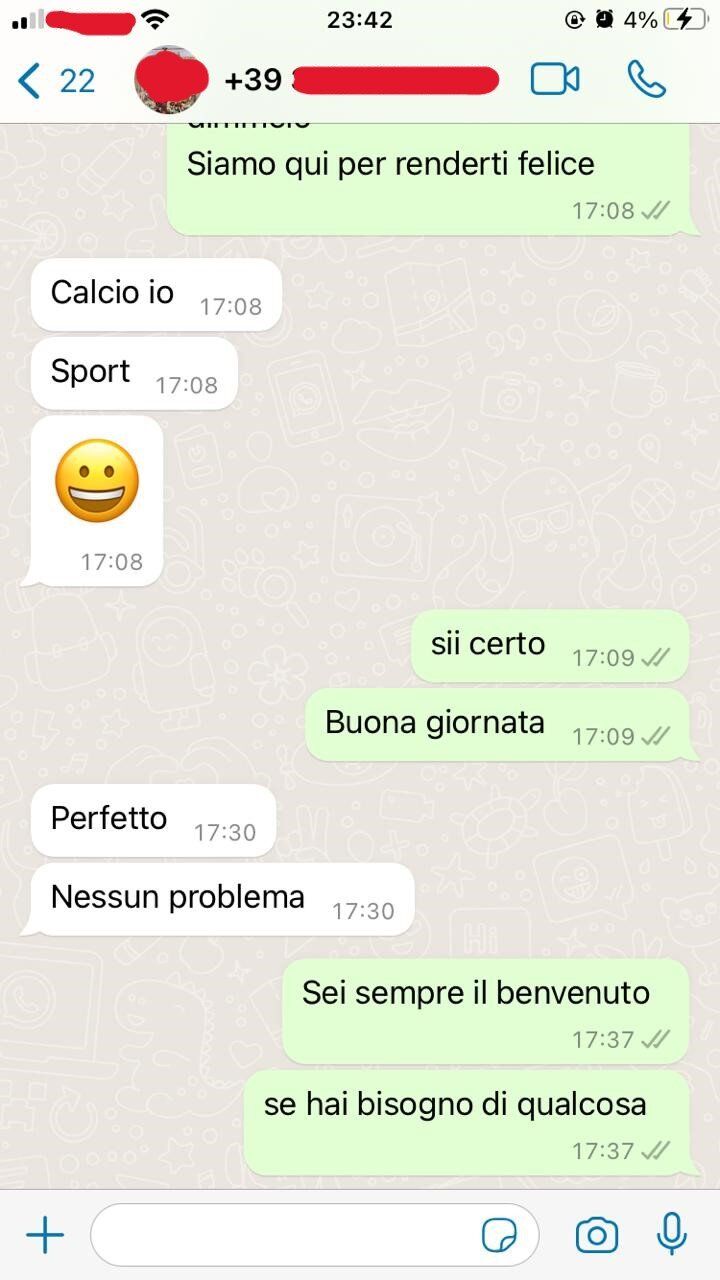
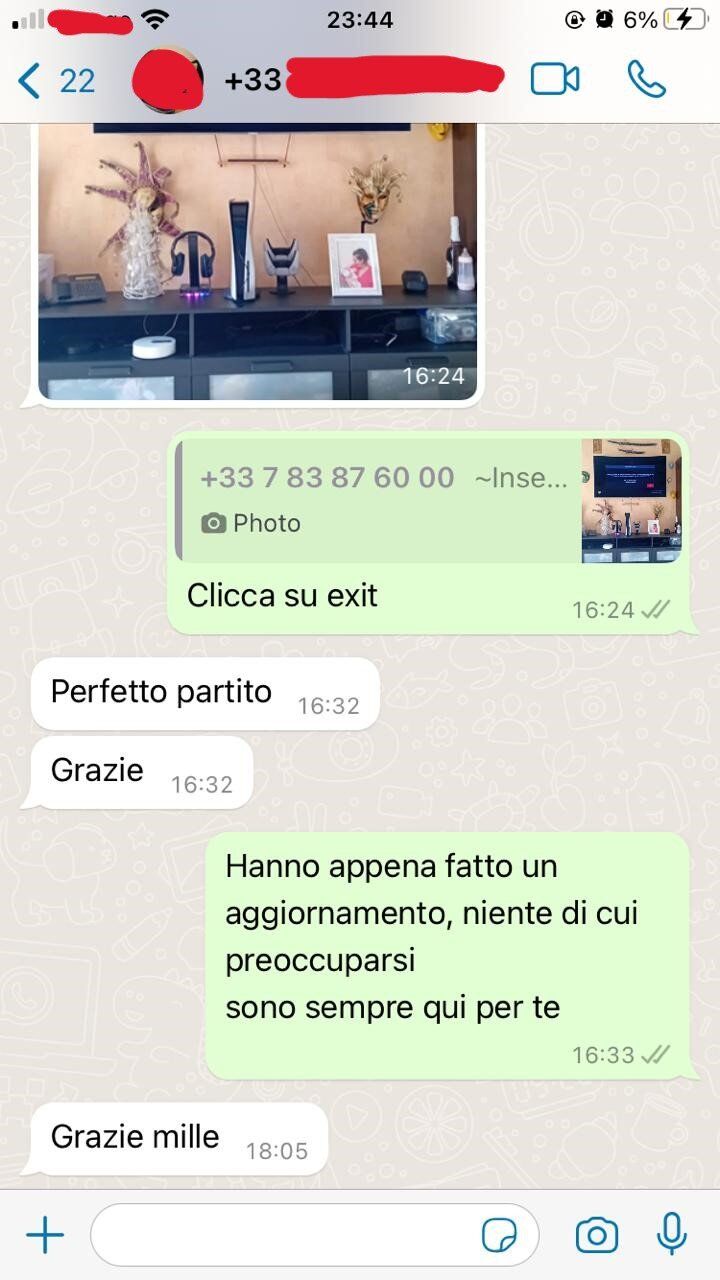
Real screenshots sent by our subscribers — unedited, straight from their screens.
.xml or .xml.gz. Some providers also support Xtream Codes API which auto-includes EPG data. The URL should always start with http:// or https://.
Our IPTV service includes fully configured EPG out of the box — no URL hunting, no timezone fiddling. Start with a free 24-hour trial.
Chat with us directly on WhatsApp
We'll set up your free 24h trial with fully configured EPG — no forms, no waiting
+216 23 179 016 · Available 24/7